Integrate Meizu Push
Follow this guide to integrate the Meizu Flyme Push Client, enabling the RC SDK to receive push notifications from the Meizu Push service.
Before integrating third-party push services, ensure you have configured the Android Application ID in the RC Console. For details, refer to Push Integration Overview.
Configure Meizu Push in the RC Console
To receive RC IM service push notifications via Meizu Push, you need to provide your Meizu Push application details in the RC Console.
-
Go to the Meizu Push Platform and note down your application's AppID, AppKey, and AppSecret.
tipIf you don't have a Meizu Flyme developer account or haven't created an application, refer to the Meizu Flyme Push Integration Documentation. A Flyme Developer Account must be verified to create applications.
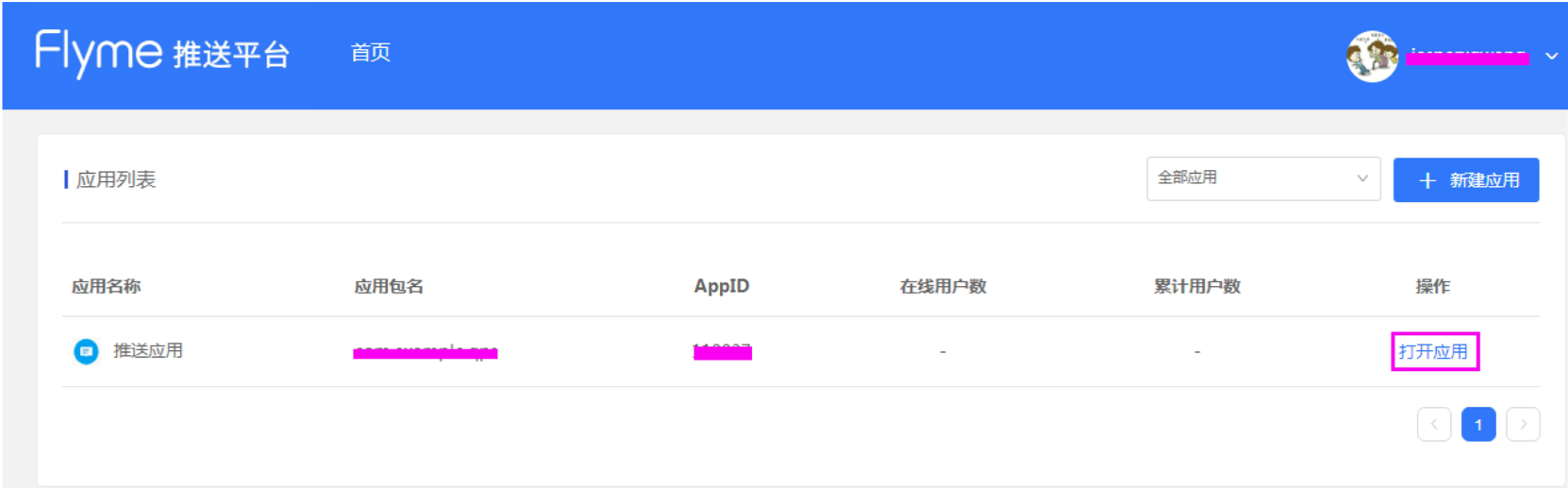
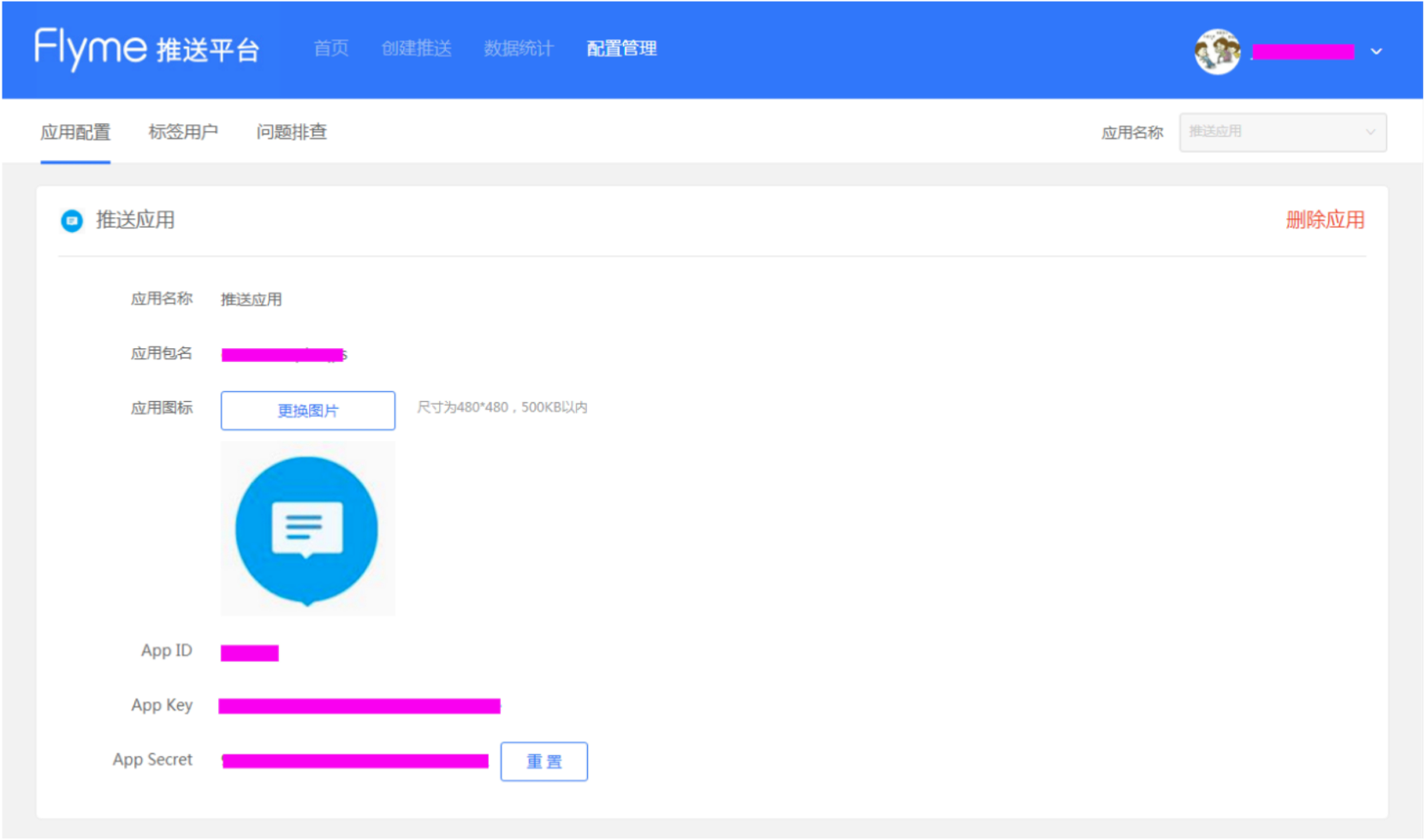
-
Open the RC Console, navigate to the Application Identifier page, click Configure Push, locate Android > Meizu Push, and enter the AppID and AppSecret obtained in the previous step.
-
(Optional) Configure the Push Notification Title. Set the default push notification title. Typically, this title setting is not used when converting client-side messages to push notifications. When calling RC server APIs
/push.json,/push/user.json, or/push/custom.jsonto send push notifications, if no title is provided, the title configured here will be used. For server-sent messages, if the sender's user ID lacks a username in the RC server, this "Push Notification Title" will also be used. -
Enable push receipts. You must create a receipt in the Meizu Push Platform and enable it here to obtain Meizu channel delivery data. For detailed configuration, see Report Push Data.
-
Save the settings. All configurations take effect after 15 minutes.
You have now completed all necessary Meizu Push configurations in the RC Console. Proceed to set up client-side integration.
Configure the Client to Receive Meizu Push
Add dependencies to your app's build.gradle and configure the MEIZU_APP_ID and MEIZU_APP_KEY for Meizu:
android {
 defaultConfig {
    //...
    manifestPlaceholders = [
        MEIZU_APP_ID : "xxxxxxxx",
        MEIZU_APP_KEY: "xxxxxxxx"
    ]
 }
dependencies {
    // x.y.z represents the current IM SDK version
    implementation 'cn.rongcloud.sdk.push:meizu:x.y.z'
}
}
Enable Meizu Flyme Push Service
Before initializing the SDK, call the following code to initialize the RongPushPlugin module.
RongPushPlugin.init(getContext());
If the RongPushPlugin module cannot be found, verify that you have integrated RC's built-in push channel.
Obfuscation Configuration
The Meizu manufacturer push client uses an aar package, which handles common permission configurations and code obfuscation. No additional configuration is required for the Meizu Push SDK when integrating the RC push plugin. For details or troubleshooting, refer to the Meizu Flyme Push Integration Documentation.
Handle Push Notification Click Events
- Customize Push Notification Click Events: Learn how to implement the SDK's default redirect behavior or customize click event handling. See Customize Push Notification Click Events.
- Customize Push Notification Styles: Notifications received from third-party manufacturers are system notifications, displayed directly by the OS. Therefore, customization is not supported.