Integrating Honor Push
Follow this guide to integrate Honor Push Service, enabling the RC SDK to receive push notifications from Honor Push Service.
Before integrating third-party push services, ensure you have configured the Android Application ID in the RC Console. Refer to Push Integration Overview.
IMLib SDK (Dev version) supports Honor Push starting from version 5.6.7. Important
If your project integrates or upgrades to IM SDK (Dev version) 5.6.7, you must simultaneously integrate Honor Push. Otherwise, devices running Honor Magic OS 8.0 or later may fail to receive push notifications.
Configure Honor Push in RC Console
To receive RC IM service push notifications via Honor Push, you need to provide your Honor Push application details in the RC Console.
-
Go to [Honor Developer Service Platform], select your created application on the Push Service page.
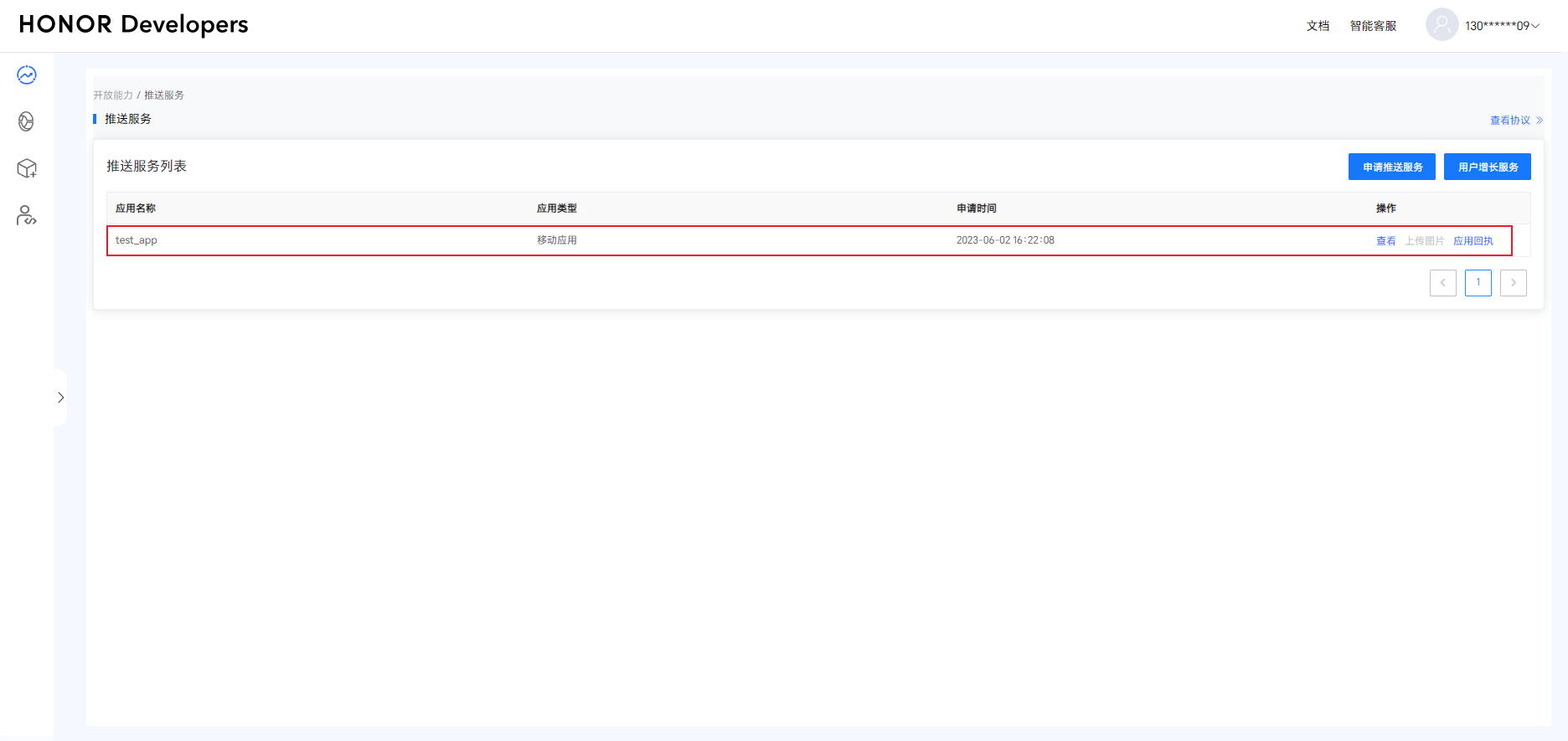 tip
tip- If you don't have a Honor developer account or haven't created projects/applications, first create an account, project, and application, then enable push service. Refer to Honor developer documentation: Create Account, Create Application, Apply for Push Service.
- Before proceeding, ensure you've enabled push service for the application on Honor Developer Service Platform and configured signature certificate fingerprints. For any questions about configuring push service on Honor Console, see Honor's official developer documentation [Application Guide].
Record the App ID, Client ID, and Client Secret under Application.
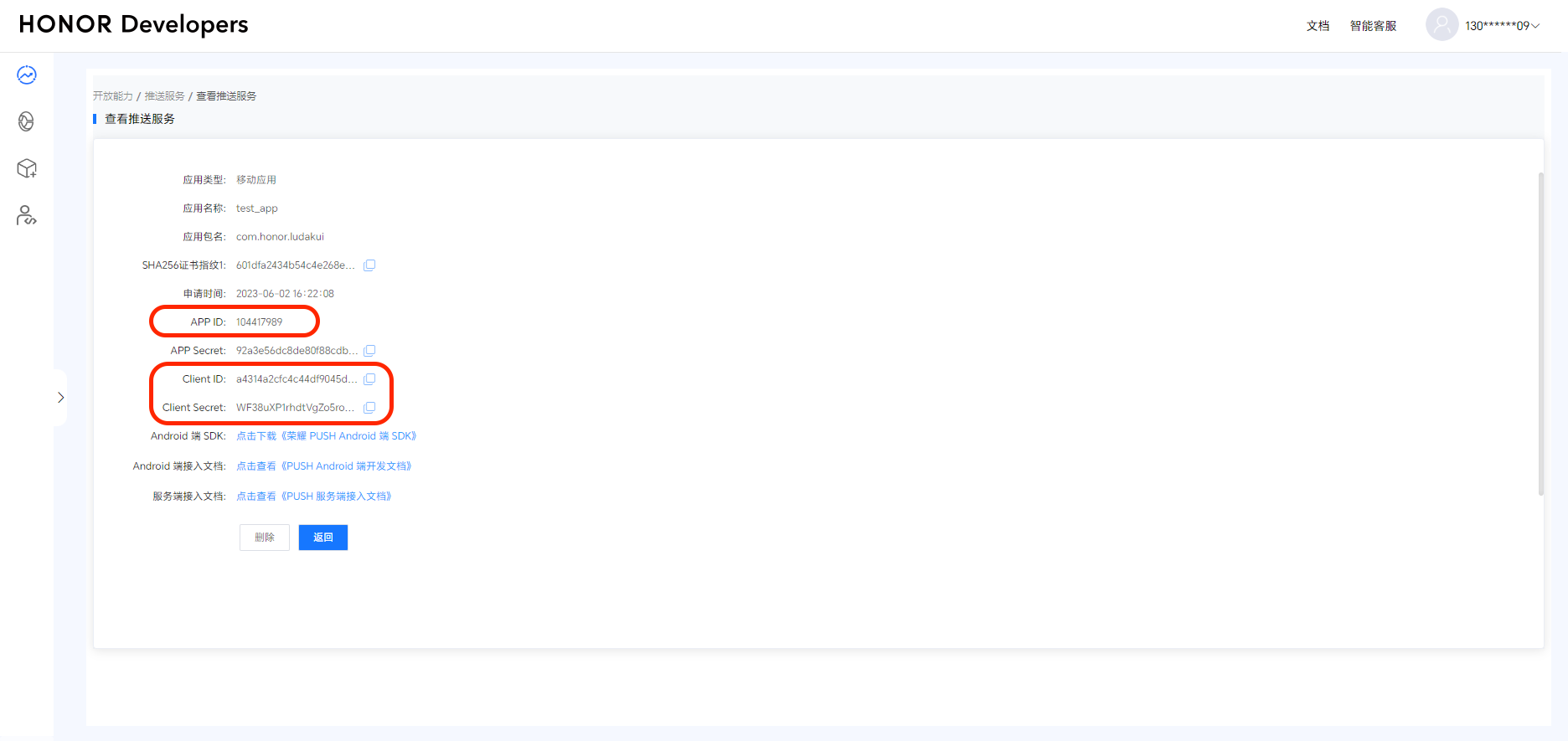
-
Open RC Console, click Configure Push on the Application Identifier page, locate Android > Honor Push, and enter the Client ID and Client Secret obtained in the previous step.
-
(Optional) Configure custom Intent for message click actions to open custom application pages. This field corresponds to
ClickAction.actionwhenClickAction.typeis1in Honor's official downstream message interface. For details, refer to Honor developer documentation Message Push. After configuring custom intent, addintent-filterinAndroidManifest.xmlActivity to receive the custom intent. -
(Optional) Configure push badges.
- badgeAddNum: The badge increment number (not the actual displayed number) must be an integer greater than 0 and less than 100. For example, if an app currently has N unread messages and add_num is set to 3, each new message will increment the badge count by 3 (N+3). This field corresponds to
BadgeNotification.addNumin Honor's official downstream message interface. For details, refer to Honor developer documentation Message Push. - Activity: Fully qualified class path of the app entry Activity. Example: com.example.honortest.MainActivity. This field corresponds to
BadgeNotification.badgeClassin Honor's official downstream message interface. For details, refer to Honor developer documentation Message Push.
- badgeAddNum: The badge increment number (not the actual displayed number) must be an integer greater than 0 and less than 100. For example, if an app currently has N unread messages and add_num is set to 3, each new message will increment the badge count by 3 (N+3). This field corresponds to
-
Configure Push Notification Title. Set the default push notification title. Normally, this title setting isn't used when converting client messages to Push. When calling RC server APIs
/push.json,/push/user.json, or/push/custom.jsonto send push notifications, if no title is provided, this configured title will be used. When sending messages from the server, if the sender's user ID has no associated username in RC server, this "Push Notification Title" will also be used. -
Save settings. All configurations take effect after 15 minutes.
You've completed all required Honor Push configurations in RC Console. Now proceed with client integration.
Configure Client to Receive Honor Push
First, add the Honor Push client SDK to your Android project.
Download Honor Service Configuration File
Follow these steps from Honor developer documentation [Add Application Configuration File]:
-
Log in to [Honor Developer Service Platform], click Application Management, find your target application, and click Application Details.
-
In the application basic information page, download the
mcs-services.jsonconfiguration file from the SDK configuration section.
-
Copy the downloaded
mcs-servics.jsonfile to your application's root directory.
Import Honor Push SDK
Important
Honor Push SDK Maven repository configurations differ for Gradle plugin versions below 7.0, version 7.0, and versions 7.1+. This guide uses the configuration for Gradle plugin versions below 7.0 as described in Honor's official documentation. For other Gradle versions, refer to Honor's official documentation Integrate SDK.
-
Configure Honor's official Maven repository (example for Gradle versions below 7.0):
Open the project's
build.gradle:- Configure SDK's Maven repository address in buildscript > repositories
- Configure SDK's Maven repository address in allprojects > repositories
- If the app includes mcs-services.json, add asplugin configuration in buildscript > dependencies
buildscript {
    repositories {
        google()
        jcenter()
        // Configure SDK's Maven repository address
        maven {url 'https://developer.hihonor.com/repo'}
    }
    dependencies {
        ...
        // Add asplugin configuration (recommend using latest version)
        classpath 'com.hihonor.mcs:asplugin:2.0.0'
        // Add gradle plugin configuration (select version matching your gradle version)
        classpath 'com.android.tools.build:gradle:4.1.2'
    }
}

allprojects {
    repositories {
        google()
        jcenter()
        // Configure SDK's Maven repository address
        maven {url 'https://developer.hihonor.com/repo'}
    }
} -
Add Honor asplugin configuration. For Gradle versions below 7.0, add this configuration below the first line in your app-level
build.gradle:apply plugin: 'com.hihonor.mcs.asplugin'tipIntroducing asplugin plugin requires configuring Gradle's JDK version to 11+ in Android Studio. Refer to Honor's official documentation Configure Development Environment.
-
If your app's
targerSdkVersionis 30+, add this tag inAndroidManifest.xmlto specify intent actions your app can handle:<queries>
<intent>
<action android:name="com.hihonor.push.action.BIND_PUSH_SERVICE" />
</intent>
</queries> -
Add these dependencies in your app-level
build.gradleto integrate RC Push 2.0 SDK:android {
defaultConfig {
//...
manifestPlaceholders = [
HONOR_APP_ID : "xxxxxxxxxx"
]
}
}
dependencies {
// x.y.z represents current IM SDK version
implementation 'cn.rongcloud.sdk.push:honor:x.y.z'
}
HONOR_APP_ID corresponds to your Honor application's APP ID.
Configure Signatures
Refer to Honor's official documentation. Copy the signature file generated in Generate Signature Certificate Fingerprint to your project's App directory, then configure the signature in build.gradle.
android {
    signingConfigs {
        config {
            // Replace xxxx with your actual signature information
            keyAlias 'xxxx'
            keyPassword 'xxxx'
            storeFile file('xxxx.jks')
            storePassword 'xxxx'
        }
    }
    buildTypes {
        debug {
            signingConfig signingConfigs.config
        }
        release {
            signingConfig signingConfigs.config
            minifyEnabled true
            proguardFiles getDefaultProguardFile('proguard-android-optimize.txt'), 'proguard-rules.pro'
        }
    }
}
Enable Honor Push Service
The SDK supports Honor Push starting from version 5.6.7 and reports Honor Push Tokens to RC server.
Enable Honor Push Service before initializing the RC SDK. The RC SDK will register the device with Honor Push Service and report the obtained Honor Push Token to RC Push Server.
Before SDK initialization, call the following code to initialize the RongPushPlugin module.
RongPushPlugin.init(getContext());
If the RongPushPlugin module cannot be found, verify that you have integrated RC's self-built push channel.
Obfuscation Configuration
Refer to Honor Push's official documentation for configuring obfuscation scripts.
Handling Push Notification Click Events
-
Customizing Push Notification Click Handling: Explains how to implement SDK's default redirection behavior and customize click event handling. See Customizing Push Notification Click Handling.
-
Customizing Push Notification Styles: Notifications received from third-party vendors are system-level notifications displayed directly by the mobile OS, and therefore cannot be customized.
Badge Unread Count
RC does not maintain application badge counts. The RC client SDK does not support controlling badge display. .