Configure Push Notification Ringtone
Push notification ringtones refer to the sounds played when RC IM receives offline push notifications from manufacturers after going offline. The app will only receive offline push notifications after disconnecting, and by default uses the sound and vibration settings configured in the phone system.
Remote push notifications will not be triggered when the app is in the background but not yet reclaimed by the system. If you integrate IMKit, only IMKit's local notifications will be triggered, playing the local notification ringtone. If you integrate IMLib, there are no local notifications.
RC currently supports configuring custom ringtones for specified message types, with adaptations for Xiaomi Push, Huawei Push (overseas only), and FCM Push.
Selecting Message Types
First, confirm the unique identifier (Object Name) of the message content type that requires a custom ringtone. Refer to Message Type Overview.
Preparing Ringtone Resource Files
You need to bundle custom sound resource filenames into your application. When users receive push notifications of this type, the system will automatically play the configured sound file. Below are the file path requirements for each manufacturer:
- Xiaomi Push:
android.resource://<package-name>/raw/<filename>, where<package-name>should be replaced with your application package name.<filename>should be replaced with the ringtone filename without its extension (the stored sound file must have an extension, but do not include it in the URI). - Huawei Push:
/res/raw/. - FCM Push:
/res/raw/.
Creating Channel IDs
Create custom notification channels. The Channel ID must be configured in the Console when setting up custom push ringtones.
Xiaomi Push
For Xiaomi devices running Android 8.0 or above, a Channel must be set up before custom push ringtones can be configured. For details, refer to Xiaomi Push Developer Documentation. Once a Channel is created and a message with that Channel is sent, the Channel will be generated on the device and cannot be deleted or modified. Therefore, create Channels carefully.
Refer to Xiaomi's documentation to create Channel IDs:
- Creating Channel IDs on Xiaomi Open Platform
- Creating Channel IDs Using Xiaomi Push Server SDK (This link only provides documentation for Xiaomi Push Server Java SDK. For other languages, refer to Xiaomi's official push documentation.)
Huawei Push
Due to Huawei platform restrictions, when the data processing location is set to China on the Huawei platform, custom channels are not supported, and custom ringtones cannot be used. Other regions support custom ringtones after registering a Channel ID.
Call the Android SDK interface in the app to create a dedicated push notification channel. Initialization can be performed in MainActivity or Application.
Sample Code
    private void initNotificationChannel() {
        if (Build.VERSION.SDK_INT >= Build.VERSION_CODES.O) {
            // Add a ringtone channel, selecting an audio file from the resources
            String channelIdKanong = "TextChannel";
            String channelNameKanong = "Kanong Ringtone";
            createNotificationChannel(channelIdKanong, channelNameKanong, NotificationManager.IMPORTANCE_HIGH, R.raw.music_poke_msg_incoming);
        }
    }

    // Create a notification channel
    @RequiresApi(api = Build.VERSION_CODES.O)
    private void createNotificationChannel(String channelId, String channelName, int importance, int rawSource) {
        NotificationChannel channel = new NotificationChannel(channelId, channelName, importance);
        if (rawSource != 0) {
            // The stored sound file must have an extension, but do not include it in the URI
            String uriStr = "android.resource://" + this.getPackageName() + "/" + rawSource;
            Uri uri = Uri.parse(uriStr);
            channel.setSound(uri, Notification.AUDIO_ATTRIBUTES_DEFAULT);
        }
        NotificationManager notificationManager = (NotificationManager) getSystemService(
                NOTIFICATION_SERVICE);
        notificationManager.createNotificationChannel(channel);
    }
FCM Push
Refer to the official Android documentation for Notification Channels and FCM Push Developer Documentation.
Configuring Ringtones for Message Types
After confirming that the ringtone resource files are bundled in your app, you need to configure the corresponding custom push ringtones by message type and Channel ID in the RC Console. Currently, the Console supports configurations for Xiaomi Push, Huawei Push, and FCM Push. Each push manufacturer allows up to 5 custom ringtones, and settings take effect after 15 minutes.
-
Navigate to the RC Console's Custom Push Ringtones page and click Add under the Xiaomi, Huawei, or FCM tabs.
-
Select the ApplicationID, enter the Channel ID, message type name, and the custom ringtone file resource path. For example, configuring a custom ringtone for Xiaomi Push:
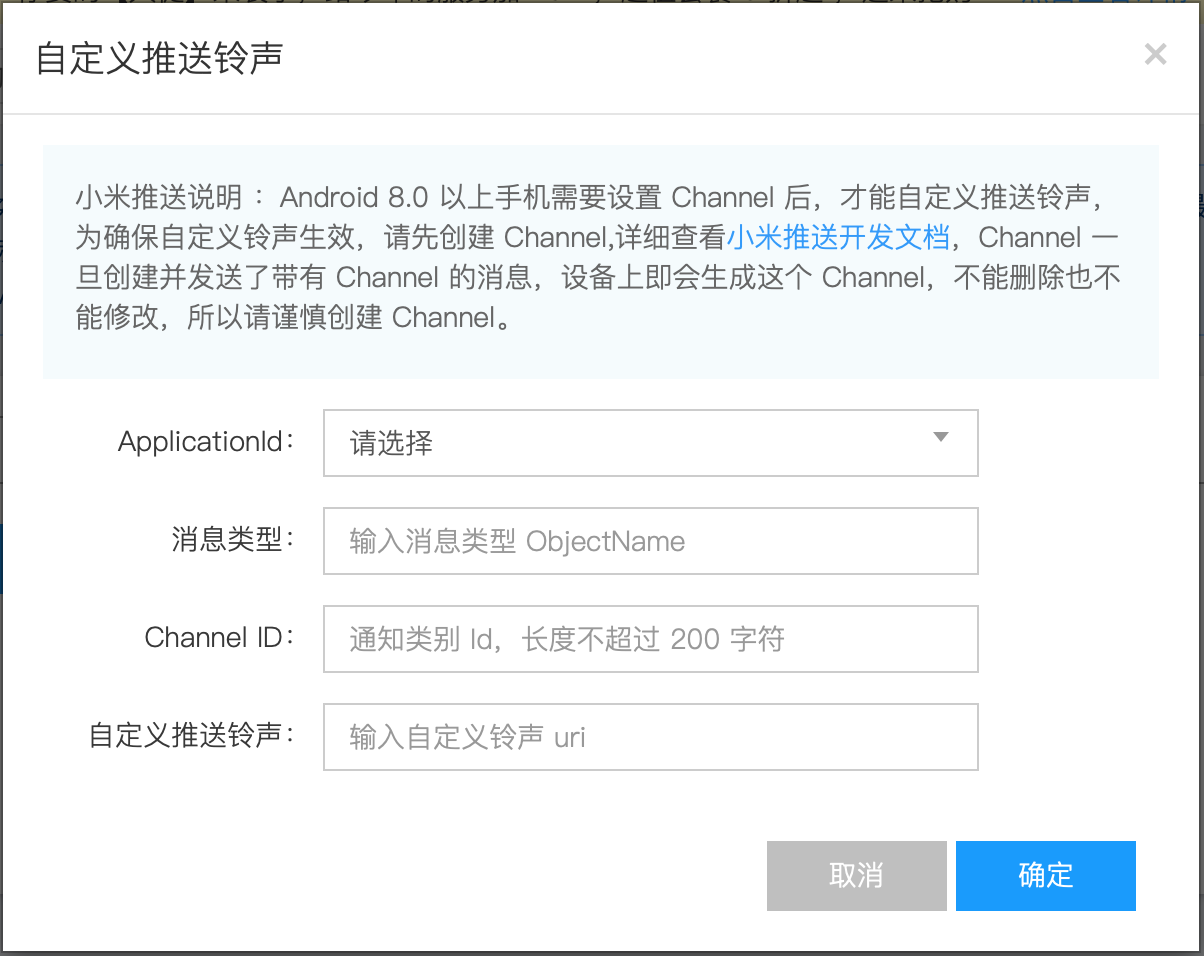
Once configured, all Xiaomi device users in offline mode will receive this type of message using the specified Channel ID, with the ringtone set during Channel registration.