Customize Long-Press Message Menu
The IMKit SDK supports triggering a popup menu by long-pressing messages in the chat UI, providing different options based on the current message type and conversation type. You can customize the display names, order, and add/remove menu options.
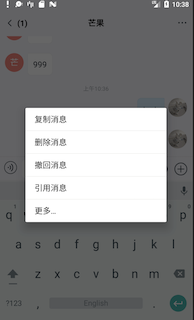
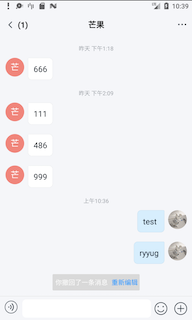
Customize Long-Press Message Menu Options
-
Listen for long-press message events (
onMessageLongClick) in the chat UI.IMCenter.setConversationClickListener(
new ConversationClickListener() {
@Override
public boolean onUserPortraitClick(
Context context,
Conversation.ConversationType conversationType,
UserInfo user,
String targetId) {
return false;
}
@Override
public boolean onUserPortraitLongClick(
Context context,
Conversation.ConversationType conversationType,
UserInfo user,
String targetId) {
return false;
}
@Override
public boolean onMessageClick(
Context context, View view, Message message) {
return false;
}
@Override
public boolean onMessageLongClick(
Context context, View view, Message message) {
return false;
}
@Override
public boolean onMessageLinkClick(
Context context, String link, Message message) {
return false;
}
@Override
public boolean onReadReceiptStateClick(
Context context, Message message) {
return false;
}
}); -
Use
MessageItemLongClickActionManagerto customize message long-press menu options (MessageItemLongClickAction). Add/remove options or adjust their display names and order.-
MessageItemLongClickActionManagerincludes default options in theinitCommonMessageItemLongClickActionsmethod. UseaddMessageItemLongClickActionto add new options. Refer to the IMKit source code MessageItemLongClickActionManager.java. -
To remove existing options, first obtain the target option object. For example, remove the default "Delete Message" option using
removeMessageItemLongClickAction:List<MessageItemLongClickAction> clickActions = MessageItemLongClickActionManager
.getInstance().getMessageItemLongClickActions();
Iterator<MessageItemLongClickAction> iterator = clickActions.iterator();
String delActionTitle = getString(R.string.rc_dialog_item_message_delete);
while (iterator.hasNext()) {
MessageItemLongClickAction clickAction = iterator.next();
boolean isDelAction = delActionTitle.equals(clickAction.getTitle(this));
if (isDelAction) {
iterator.remove();
break;
}
}
The
MessageItemLongClickActionclass properties are shown below.Property Type Description title String Display name. listener MessageItemLongClickListener Long-press message listener. priority int Higher priority items appear first (top to bottom). Default is 0(added order).filter Filter Controls whether the option is displayed. -
Customize Multi-Select Operation Menu
After selecting More in the long-press message menu, the SDK enters multi-select mode, which by default provides forward and delete buttons. You can add/remove buttons or create custom ones.
-
Implement the
IClickActionsinterface.public class CustomClickActions implements IClickActions {
/**
* Get button icon
*
* @param context Context
* @return Drawable for the icon. Use a selector for highlight/gray states.
*/
@Override
public Drawable obtainDrawable(Context context) {
return null;
}
/**
* Button click event
*
* @param curFragment Current Fragment (avoid holding references to prevent memory leaks).
*/
@Override
public void onClick(Fragment curFragment) {
}
/**
* Filter logic. Hide this button in specific conversations if needed.
* @param message Message
* @return Return true to hide this item.
*/
@Override
public boolean filter(UiMessage message) {
return false;
}
} -
Configure the custom button in the SDK.
RongConfigCenter.conversationConfig().addMoreClickAction(0, new CustomClickAction()); -
Remove built-in buttons if needed. Example: Remove the forward button.
List<IClickActions> clickActions = RongConfigCenter.conversationConfig().getMoreClickActions();
List<IClickActions> removeActions = new ArrayList<>();
for (IClickActions action : clickActions){
    if (action instanceof ForwardClickActions){
        RongConfigCenter.conversationConfig().removeMoreClickAction(action);
    }
}tipRemoving the "Forward" button only takes effect when IMKit's merge-forward feature is disabled.
Manually Control Multi-Select State
You can manually control the multi-select state or retrieve selected data.
Enter multi-select mode:
MessageViewModel messageViewModel = ViewModelProviders.of(fragment).get(MessageViewModel.class);
messageViewModel.enterEditState();
Exit multi-select mode:
MessageViewModel messageViewModel = ViewModelProviders.of(fragment).get(MessageViewModel.class);
messageViewModel.quitEditMode();
Get selected messages:
MessageViewModel messageViewModel = ViewModelProviders.of(fragment).get(MessageViewModel.class);
List<UiMessage> selectedMessages = messageViewModel.getSelectedUiMessages();
Monitor multi-select state changes:
Use MessageViewModel's LiveData to observe state changes.
MessageViewModel messageViewModel = ViewModelProviders.of(fragment).get(MessageViewModel.class);
messageViewModel.getEditStatusLiveData().observe(this, new Observer<Boolean>() {
  @Override
  public void onChanged(Boolean aBoolean) {
    //Update UI based on business needs.
  }
});